

Verify your identity (KYC)
Unlock the local deposit and cash-out options for your country with a one-time check.
Verifying your identity unlocks the deposit and cash-out options that run through licensed local partners. You do it once, it takes a few minutes, and all you need is an ID document.
Supported documents
| Country | Documents |
|---|---|
| 🇦🇷 Argentina | DNI |
| 🇨🇱 Chile | RUT |
| 🇨🇴 Colombia | Citizen ID, Passport, Foreigner ID, Residency Permit |
Sending and receiving digital dollars never needs verification, and neither do crypto deposits and withdrawals. It's only for moving money between your local rails and your wallet, like your bank account or local payment apps. Why do I need to verify my identity? has the full story.
Start the verification
Tap Deposit (or Withdraw) on your home screen, then tap the Verify your identity banner.
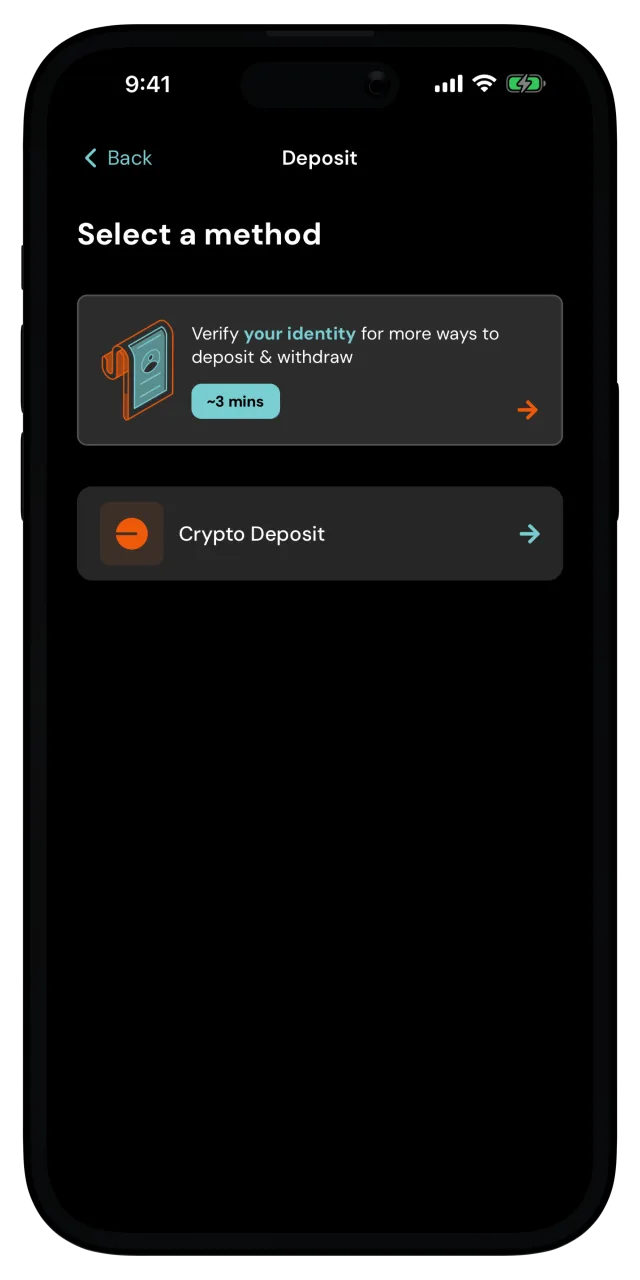
Tap Start verification. If now isn't a good time, Do it later closes the prompt, and the banner waits for you.
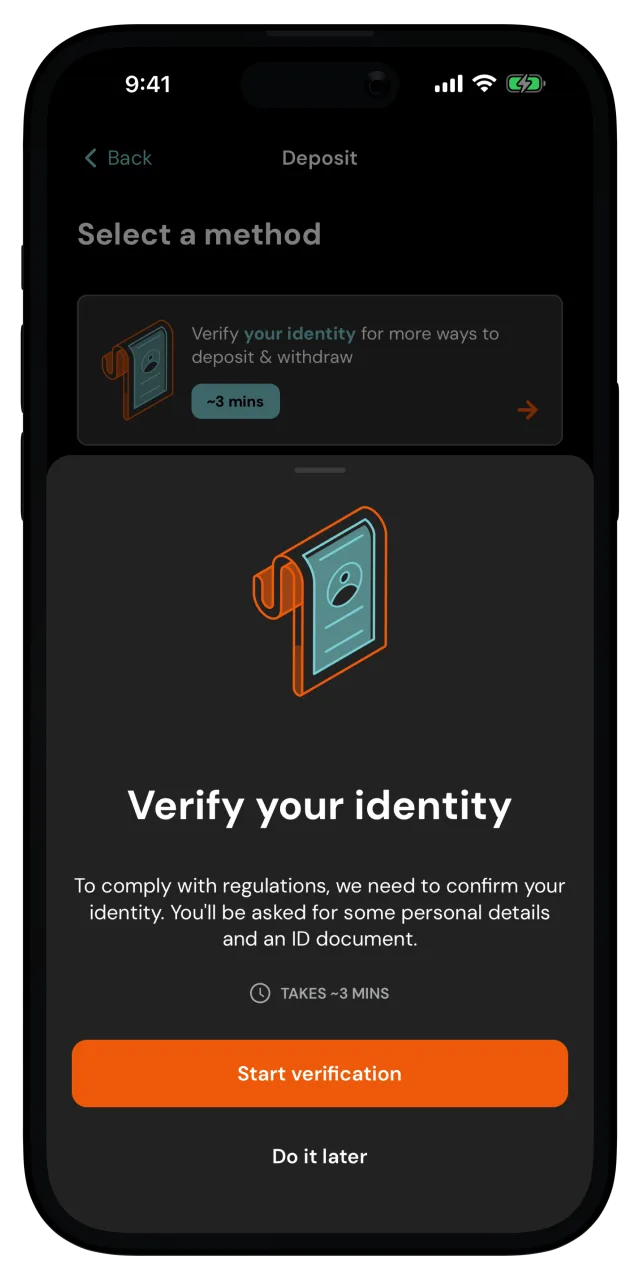
Complete the check
The app walks you through it. You fill in a few personal details and take a photo of your ID document. The Supported documents list shows which documents work in your country.
If you get interrupted, no problem. The banner switches to In Progress, and tapping it picks up where you left off.
Wait for the review
If your check needs a closer look, the banner shows In Review, and we notify you once it's complete. Nothing else to do on your end.
Your local options unlock
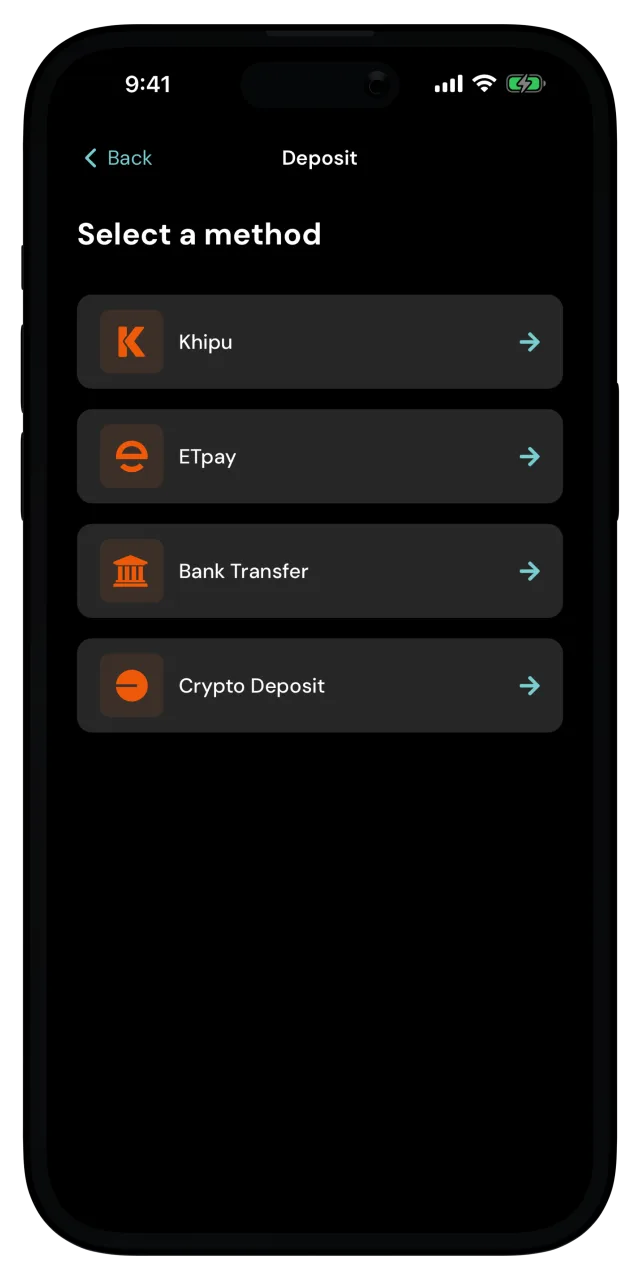
Once you're approved, we set up the local payment methods for your country and notify you as soon as they're ready. From then on, the Deposit and Withdraw screens list your local options, and each one has its own walkthrough in the Guides section, under Depositing & withdrawing.
If verification doesn't go through
If we couldn't verify you, the banner shows Action Required. Tap it and follow the prompt to reach our support team at [email protected]. We'll help you sort it out.