

Change your recovery key
Replace your recovery key with a fresh one and back it up again.
Your recovery key is what gets your wallet back on a new device. If you think your backup file or recovery password may have been exposed, or you just want a fresh start, you can replace the key entirely. Your wallet switches to the new key, and the old backup stops working.
You'll need:
- Your current recovery key backup
- Its recovery password
- Your PIN
Open your recovery key settings
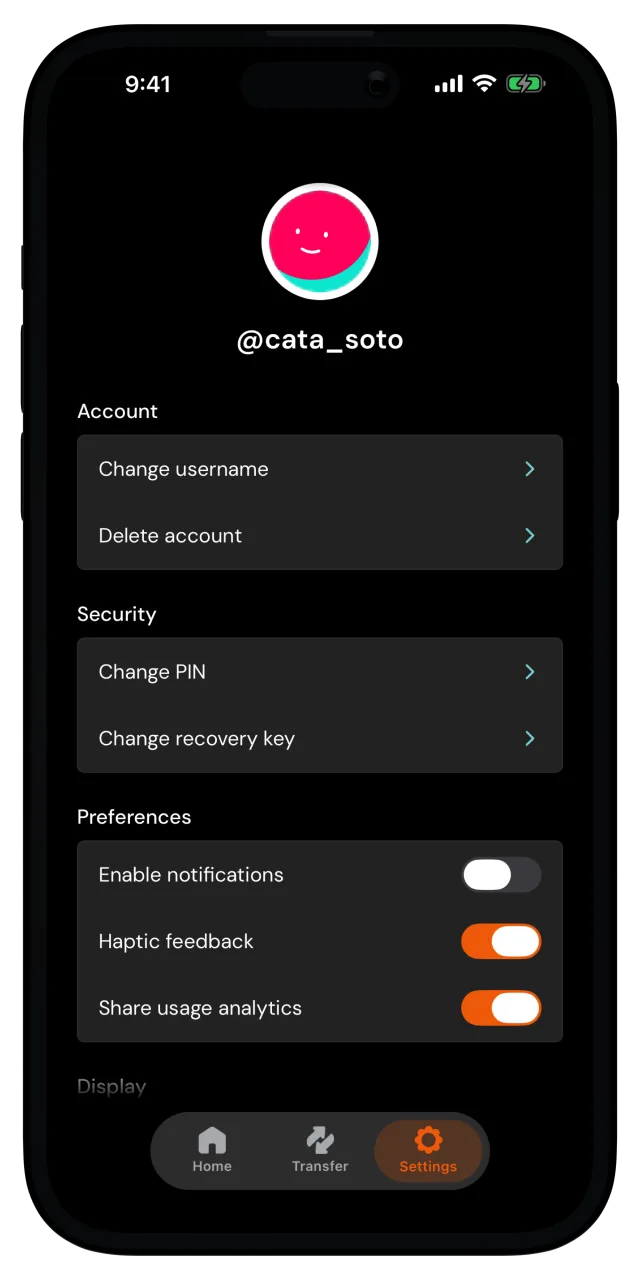
Go to the Settings tab. Under Security, tap Change recovery key and enter your PIN to confirm it's you.
Verify your current recovery key
Before creating a new key, you prove you hold the current one. Choose where your current backup lives, iCloud (iPhone) or Google Drive (Android) for cloud backups, or Manual import for a backup file you have on hand.
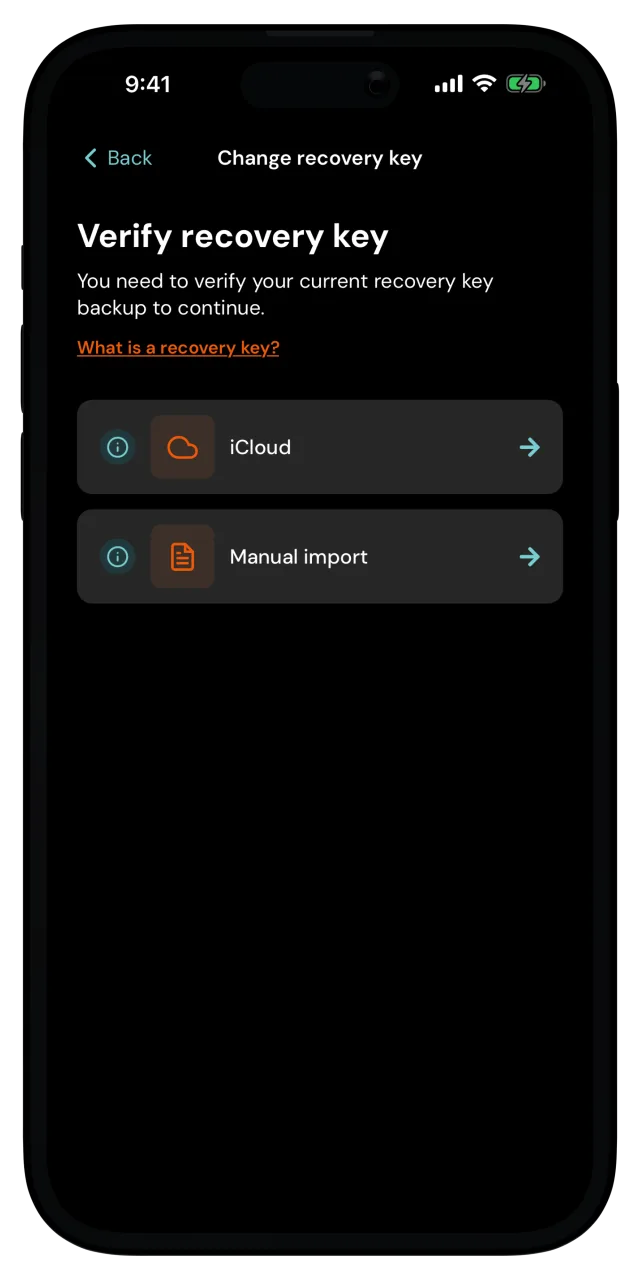
Then enter your current recovery password, the one you set when you first backed up your wallet.
Lost your current recovery key?
A lost recovery key is impossible to recover, not even MozaikPay can help. If you don't have your current backup or its password anymore, create a new account and move your funds there.
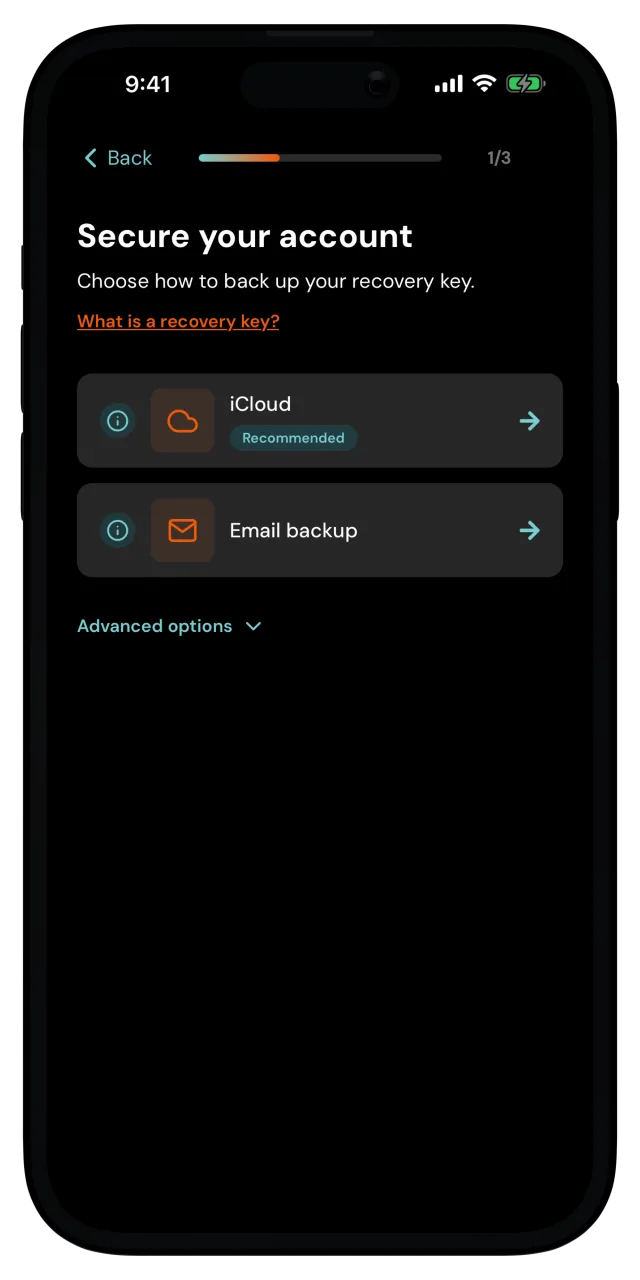
Choose a home for the new backup
This is the same choice you made when you set up your account. Your own cloud, iCloud or Google Drive, is the simplest. Email backup sends the encrypted file to your inbox, and Manual backup, under Advanced options, hands you the file to store wherever you want.
Set a new recovery password
Create a recovery password and enter it again to confirm. It encrypts your new backup, and you'll need it if you ever restore your wallet. Like before, it's not stored anywhere, so write it down and keep it somewhere safe.
Save the backup and you're done
Depending on what you picked, the app saves the file to your cloud, emails it to your inbox, or lets you save it yourself. Then it switches your wallet over to the new key.
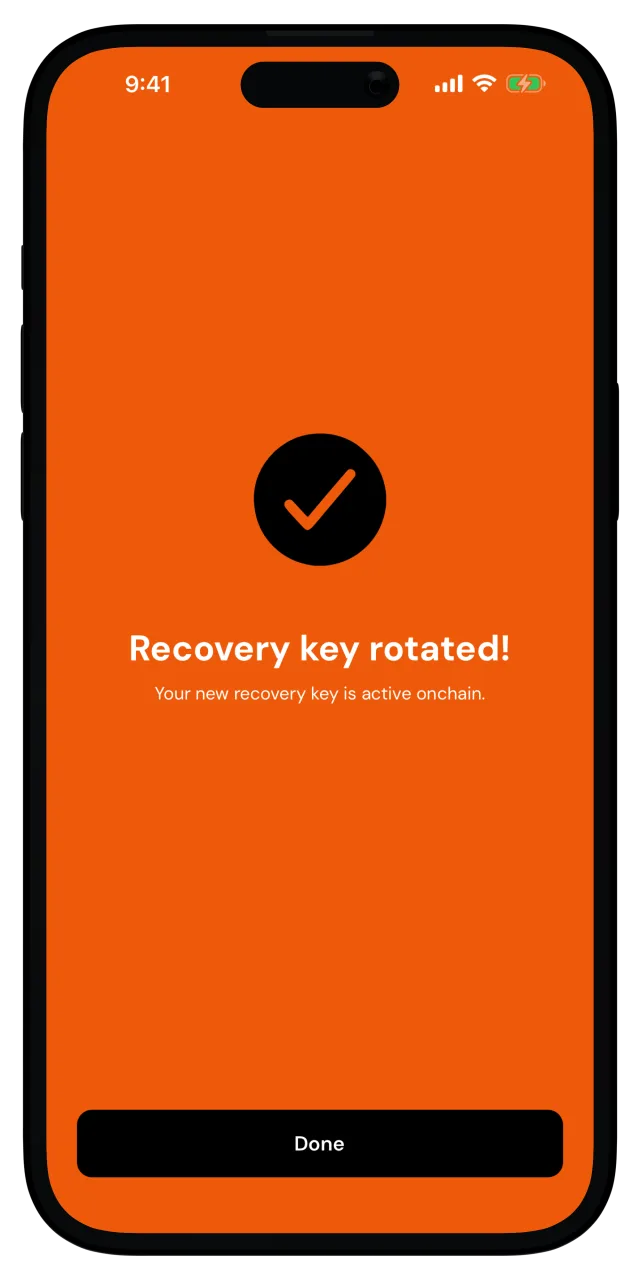
When you see Recovery key rotated!, tap Done. From now on, your new backup and password are the ones that restore your wallet, and the old backup can't be used anymore.
Keep your old backup until the change goes through
If something goes wrong along the way, the app tells you, and your old backup stays the active recovery key. Don't delete it until you see the success screen, and just try again when you're ready.
Want to know what the recovery key actually is? The two-key model explains how it protects your wallet.